

SQLite is an excellent choice for local storage in mobile and desktop applications due to its simplicity and lightweight nature. However, in many modern applications, the need arises to sync data between a local SQLite database and a cloud-based server. This is especially common in mobile apps, where users expect data to be available even when offline.
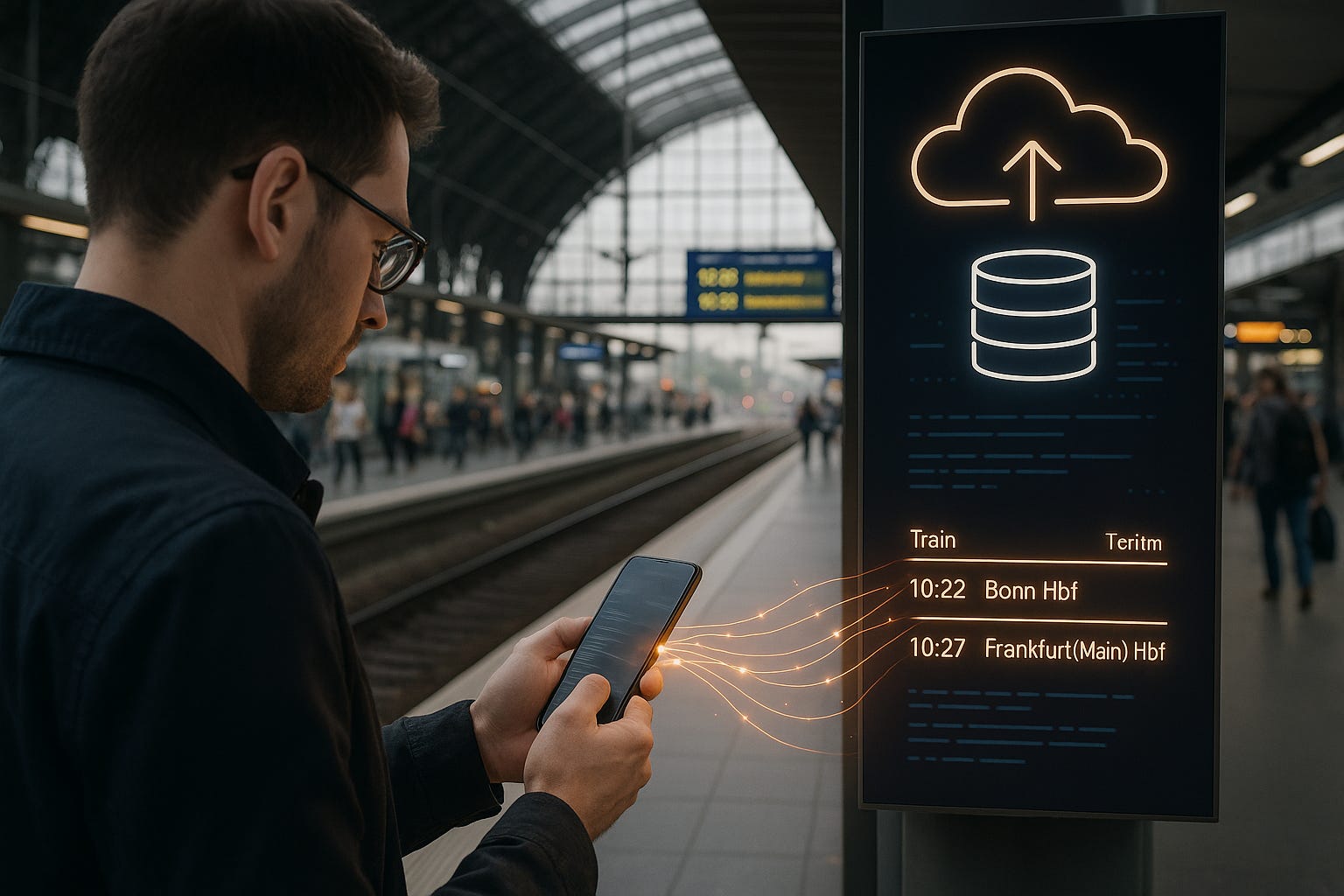
In this blog, we’ll explore how to integrate SQLite with cloud databases, ensuring seamless data syncing between local and server-side data, and provide real-world examples of how this process works.
Why Sync SQLite with Cloud Databases?
Before diving into the technical aspects, let’s take a moment to discuss why syncing data between local SQLite databases and cloud databases is essential. Syncing data between local and server databases is crucial for maintaining data integrity, which we explored in detail in our previous blog on Handling Concurrency in SQLite. This ensures that simultaneous data operations across multiple devices don't cause issues.
Offline Capabilities: SQLite allows your app to work offline by storing data locally on the device. This is particularly useful for mobile applications, as users can still use the app even when they don’t have an internet connection. Once the device reconnects to the internet, it needs to sync the data with the cloud.
Real-Time Data Access: Cloud databases, such as Firebase, AWS, or Azure, provide centralized, real-time data access, which ensures that all users have the latest data.
Data Integrity: Syncing data between local and server databases helps ensure that the user’s data remains up-to-date across all platforms. It also protects against data loss in case of device failures or app crashes.
Key Concepts for Syncing SQLite with Cloud Databases
To sync data between SQLite and a cloud database, there are a few key concepts and approaches to understand:
Two-Way Syncing: Data changes in both local SQLite and the cloud database must be reflected in the other. This means not only pushing changes from the local database to the cloud but also pulling updates from the cloud to the local database.
Conflict Resolution: When syncing data, conflicts may arise if the same data has been modified both locally and on the cloud. It’s important to have conflict resolution strategies in place (e.g., last-write-wins, manual conflict resolution). To understand more about how SQLite can manage data integrity and ensure the reliability of your database, refer to our guide on Data Security and Backup Strategies in SQLite.
Batching Updates: Syncing all data at once can be inefficient and resource-intensive. Batching updates and only syncing changed data (i.e., delta sync) can save bandwidth and reduce sync time.
How to Sync SQLite with Cloud Databases
Let’s walk through an example of how to sync SQLite data with a cloud database like Firebase or AWS using a combination of local database operations and API calls to the cloud.
Step 1: Setup SQLite Database for Local Storage
We’ll begin by creating a local SQLite database. For this example, let’s assume we are building an app that stores information about users and their orders.
SQLite Table Structure:
CREATE TABLE users (
    id INTEGER PRIMARY KEY,
    name TEXT NOT NULL,
    email TEXT NOT NULL
);

CREATE TABLE orders (
    id INTEGER PRIMARY KEY,
    user_id INTEGER,
    product_name TEXT,
    quantity INTEGER,
    FOREIGN KEY(user_id) REFERENCES users(id)
);
In this structure, we have a table for users and a table for orders.
Step 2: Integrating Cloud Database (e.g., Firebase)
To sync with the cloud, you need to interact with a cloud database (e.g., Firebase Firestore). Firebase SDKs are available for different platforms (Android, iOS, Web), making the integration seamless.
Here is an example of how to set up Firebase in your app:
Add Firebase SDK to Your App (Android)
In your build.gradle file, include Firebase dependencies:
implementation 'com.google.firebase:firebase-firestore:24.0.0'Initialize Firebase in Your App:
FirebaseFirestore db = FirebaseFirestore.getInstance();Step 3: Syncing Data from SQLite to Cloud Database
When the app is back online, you’ll need to sync the local changes with the cloud. Let’s start by retrieving all unsynced orders from the local SQLite database and uploading them to Firebase.
Sync Local SQLite Orders with Firebase:
public void syncOrdersWithCloud() {
    SQLiteDatabase db = dbHelper.getWritableDatabase();
    Cursor cursor = db.rawQuery("SELECT * FROM orders WHERE synced = 0", null);

    while (cursor.moveToNext()) {
        int orderId = cursor.getInt(cursor.getColumnIndex("id"));
        int userId = cursor.getInt(cursor.getColumnIndex("user_id"));
        String productName = cursor.getString(cursor.getColumnIndex("product_name"));
        int quantity = cursor.getInt(cursor.getColumnIndex("quantity"));

        // Create a map for Firestore
        Map<String, Object> orderMap = new HashMap<>();
        orderMap.put("user_id", userId);
        orderMap.put("product_name", productName);
        orderMap.put("quantity", quantity);

        // Upload to Firebase
        db.collection("orders").document(String.valueOf(orderId))
            .set(orderMap)
            .addOnSuccessListener(aVoid -> {
                // Update local SQLite to mark the order as synced
                ContentValues values = new ContentValues();
                values.put("synced", 1);
                db.update("orders", values, "id = ?", new String[]{String.valueOf(orderId)});
            })
            .addOnFailureListener(e -> {
                Log.e("SyncError", "Failed to sync order with cloud", e);
            });
    }
    cursor.close();
}
Explanation:
We query the local SQLite database for orders that haven't been synced yet (
synced = 0).For each unsynced order, we create a map and upload it to Firebase.
After successfully uploading the data, we mark the order as synced in the SQLite database.
Step 4: Syncing Data from Cloud to SQLite
When the app is online, you also want to sync updates from the cloud back to the local SQLite database. This ensures that the local database stays in sync with any changes made remotely.
Sync Data from Firebase to SQLite:
public void syncCloudDataToSQLite() {
    db.collection("orders")
        .get()
        .addOnSuccessListener(queryDocumentSnapshots -> {
            for (DocumentSnapshot document : queryDocumentSnapshots) {
                int orderId = Integer.parseInt(document.getId());
                Map<String, Object> orderData = document.getData();
                int userId = ((Long) orderData.get("user_id")).intValue();
                String productName = (String) orderData.get("product_name");
                int quantity = ((Long) orderData.get("quantity")).intValue();

                // Insert into SQLite database
                SQLiteDatabase db = dbHelper.getWritableDatabase();
                ContentValues values = new ContentValues();
                values.put("id", orderId);
                values.put("user_id", userId);
                values.put("product_name", productName);
                values.put("quantity", quantity);

                db.insertWithOnConflict("orders", null, values, SQLiteDatabase.CONFLICT_REPLACE);
            }
        })
        .addOnFailureListener(e -> {
            Log.e("SyncError", "Failed to sync data from cloud", e);
        });
}
Explanation:
We retrieve the orders from the cloud database (Firebase) and insert or update them in the local SQLite database.
This ensures that the latest data is available on the device, even after the app goes offline and reconnects.
Challenges and Best Practices for Data Syncing
Conflict Resolution: If changes are made both locally and on the cloud, a conflict may occur. You’ll need to define strategies like "last-write-wins" or manual conflict resolution based on timestamps.
Handling Large Datasets: When syncing large amounts of data, consider using pagination or batch updates to prevent the app from freezing or taking too long to sync. When working with large amounts of data, using strategies like delta sync can be crucial. For more insights into optimizing SQLite performance for larger databases, check out our blog on Optimizing SQLite Performance.
Offline Storage: For apps with limited internet connectivity, make sure to store changes locally and sync them when the device reconnects to the internet.
Use of Delta Sync: Instead of syncing all data every time, only sync the changed data to minimize bandwidth usage and improve performance.
Key Takeaways
Integrating SQLite with cloud databases allows your mobile app to work offline and sync seamlessly when the connection is available. By following best practices for syncing, handling conflicts, and optimizing performance, you can ensure your app's data is always up-to-date, reliable, and accessible for your users.
With the growing use of mobile applications and cloud technologies, syncing local and cloud data is a critical skill for any developer working with SQLite in mobile or web applications.
Subscribe Now
Stay updated with the latest tips and tutorials on SQLite and mobile app development! Subscribe now to receive expert advice, step-by-step guides, and updates directly in your inbox. Join our community at the SQLite Forum to ask questions, share experiences, and connect with fellow developers!