

In today's mobile app ecosystem, hybrid applications have become essential for developers looking to provide both offline access and real-time updates. Hybrid apps combine the power of local storage with the flexibility of cloud-based data, enabling seamless user experiences regardless of internet connectivity.
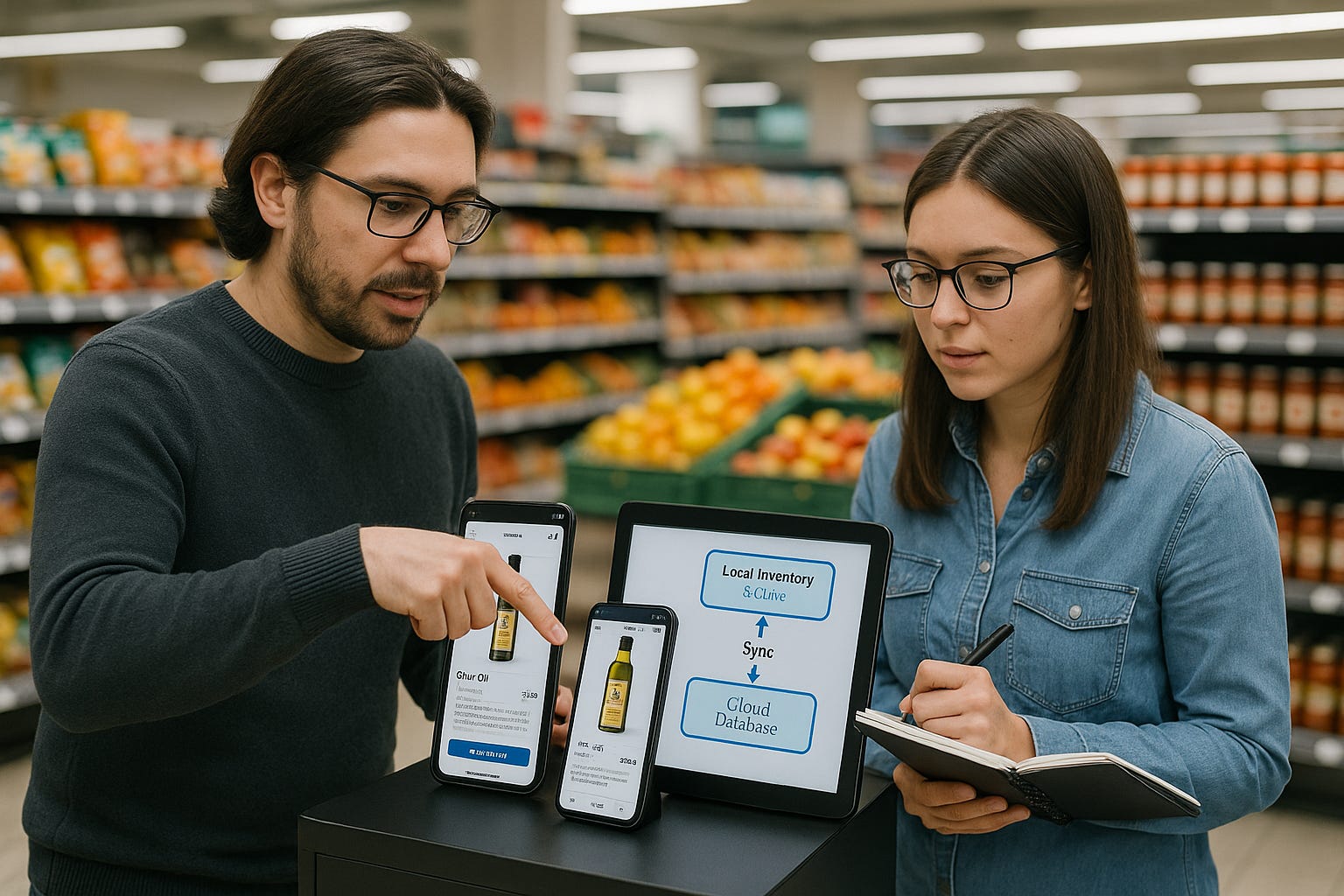
One of the key technologies for local storage is SQLite, a lightweight, high-performance database used extensively in mobile applications. While SQLite excels at managing data locally, syncing that data with a remote server or cloud database is essential for maintaining up-to-date information across platforms. This blog will explore how to use SQLite for local data storage and sync it with remote databases, ensuring a consistent, real-time experience for users.
Why Hybrid Applications?
Hybrid applications are particularly useful for apps that need to function offline while still maintaining the ability to sync with the cloud when a network connection is available. The benefits of hybrid apps include:
Offline Access: Users can continue using the app even when they’re not connected to the internet, as data is stored locally in SQLite.
Real-Time Data Sync: Once the app is online, it can sync local data with the cloud to ensure consistency.
Seamless Experience: Users interact with the app without interruptions, as it automatically handles data synchronization when they’re connected.
Syncing data between local storage (SQLite) and a cloud database can sometimes be tricky, and it's important to handle the process efficiently. To ensure smooth operation, check out our blog on Handling Concurrency in SQLite to learn about data consistency and conflict resolution when syncing data.
Using SQLite for Local Storage
SQLite is a fantastic choice for local storage in hybrid apps due to its small size, ease of use, and fast performance. It enables the app to function even when the user is offline. For example, in a task management app, tasks and user preferences can be stored in SQLite, enabling the app to work without requiring a constant internet connection.
SQLite Schema for Tasks:
CREATE TABLE tasks (
    task_id INTEGER PRIMARY KEY,
    task_name TEXT NOT NULL,
    due_date TEXT,
    status TEXT
);
In this schema, we store basic task information such as the task name, due date, and status. The local SQLite database ensures that the user can interact with and manage tasks even while offline.
Inserting Data into SQLite:
ContentValues values = new ContentValues();
values.put("task_name", "Complete Blog Post");
values.put("due_date", "2025-06-15");
values.put("status", "Pending");

SQLiteDatabase db = dbHelper.getWritableDatabase();
long newRowId = db.insert("tasks", null, values);
This example inserts a new task into the local SQLite database, allowing the user to continue managing their tasks even without an internet connection.
Syncing Local and Remote Data
The key to a successful hybrid application is syncing local data with remote data stored on a server or cloud database. To achieve this, you'll typically need to:
Push Local Data to the Cloud: When the app comes online, any data created or modified locally (such as new tasks or completed orders) should be pushed to the server.
Pull Remote Data to Local Database: When the app is online, the latest data from the server should be pulled to the local SQLite database to ensure consistency across devices.
Example: Syncing Data from SQLite to a Remote Server
public void syncDataToServer() {
    SQLiteDatabase db = dbHelper.getReadableDatabase();
    Cursor cursor = db.query("tasks", null, "status = ?", new String[] {"Pending"}, null, null, null);

    while (cursor.moveToNext()) {
        String taskName = cursor.getString(cursor.getColumnIndex("task_name"));
        String dueDate = cursor.getString(cursor.getColumnIndex("due_date"));

        // Send data to server via API call
        sendDataToServer(taskName, dueDate);
    }
    cursor.close();
}

private void sendDataToServer(String taskName, String dueDate) {
    // Code to send data to remote server via REST API
}
In this example, tasks that are marked as "Pending" in the local SQLite database are synced with the server by sending the data through an API call. Once synced, you can update the status to "Synced" or delete the entry from the local database.
Example: Syncing Data from Cloud to SQLite
public void syncCloudToLocal() {
    // Assuming data is fetched from the server as a JSON array
    JSONArray tasksFromServer = getTasksFromServer();

    SQLiteDatabase db = dbHelper.getWritableDatabase();
    for (int i = 0; i < tasksFromServer.length(); i++) {
        JSONObject task = tasksFromServer.getJSONObject(i);

        ContentValues values = new ContentValues();
        values.put("task_name", task.getString("task_name"));
        values.put("due_date", task.getString("due_date"));
        values.put("status", task.getString("status"));

        db.insertWithOnConflict("tasks", null, values, SQLiteDatabase.CONFLICT_REPLACE);
    }
}
In this example, data from the remote server is fetched and inserted into the SQLite database. This keeps the local data up-to-date with any changes made remotely.
To ensure smooth performance during data sync, it's important to optimize the performance of SQLite itself. Check out our blog on Optimizing SQLite Performance for tips on making SQLite run more efficiently when syncing large datasets.
Real-World Example: E-commerce Mobile App
In an e-commerce app, users might browse products and add items to their cart while offline. Once they reconnect to the internet, the cart’s data is synced with the cloud, and any changes made remotely (e.g., inventory updates) are pulled into the app.
Syncing Local Cart with Remote Server:
public void syncCartToServer() {
    SQLiteDatabase db = dbHelper.getReadableDatabase();
    Cursor cursor = db.query("cart", null, "status = ?", new String[] {"Unpaid"}, null, null, null);

    while (cursor.moveToNext()) {
        String productName = cursor.getString(cursor.getColumnIndex("product_name"));
        int quantity = cursor.getInt(cursor.getColumnIndex("quantity"));

        // Push cart data to server
        sendCartToServer(productName, quantity);
    }
    cursor.close();
}
Once synced, the user can check out their cart, and any updates to the product’s price or availability will be reflected when they sync data back to the app.
Best Practices for Hybrid Data Syncing
Conflict Resolution: When syncing data, conflicts might arise if the same data is modified both locally and remotely. You can resolve this using strategies like last-write-wins or manual conflict resolution based on timestamps.
Implementing robust security and backup strategies is essential for managing sync conflicts and ensuring data integrity. If you’re interested in learning more about securing your SQLite database, our blog on Data Security and Backup Strategies will guide you through best practices for safeguarding your data.
Batching Syncs: Syncing large amounts of data at once can be inefficient. Batch your updates to avoid large payloads and reduce network usage.
Efficient Delta Sync: Only sync changed data, or delta sync, instead of syncing everything. This reduces network load and improves performance.
Use Background Sync: To enhance user experience, sync data in the background, ensuring the user can continue using the app without interruptions.
Conclusion
Combining SQLite with cloud databases provides an excellent solution for building hybrid applications that require both offline access and real-time data synchronization. By leveraging SQLite for local storage and syncing it with cloud databases, you can create efficient, reliable, and seamless user experiences across multiple devices and platforms. Whether building an e-commerce app, task manager, or any other hybrid app, the strategies outlined in this blog will help ensure smooth, consistent data handling.
Subscribe Now
Stay updated with the latest tips and tutorials on SQLite and hybrid application development! Subscribe now to receive expert advice, step-by-step guides, and updates directly in your inbox. Join our community at the SQLite Forum to ask questions, share experiences, and connect with fellow developers!